Cool Master Gateway
This guide explains how to set up an Cool Master using the Loft App.
⚠️ Note: To set up a Cool Master, the device must already be installed. If don't know how to install a device so click here.
Steps to Setup Cool Master
-
Open the Loft App
-
Go to Climate Section
- Tap the side menu (hamburger icon) in the top-left corner.
- Select the Climate Control option.
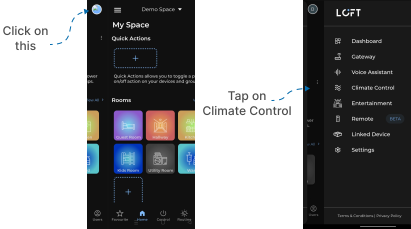
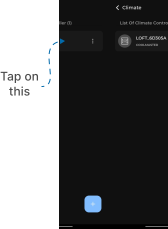
- Select Device in Climate List
- Installed device will appear in the Climate Controller list.
- Tap on it to proceed.
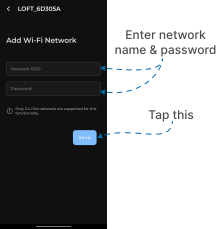
- Add Network
- A Wi-Fi network input screen appears.
- Enter:
- SSID (your Wi-Fi network name)
- Password (Wi-Fi password)
- Tap Send.
- But, Make Sure Only 2.4 GHz networks are supported for this functionality.
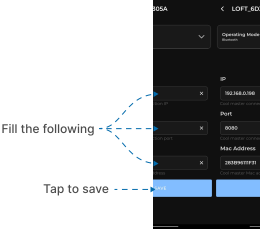
- Operating Setup
- Operating Mode screen appears.
- Enter the following:
- IP (enter cool master connection IP)
- PORT (enter cool master connection Port)
- MAC ADDRESS (enter cool master Mac Address)
- Then Click on Save.
- End Process
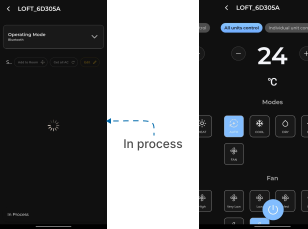
- After saving the operating credentials, your Cool Master displays setup in Progress and begins fetching units.
- Once configured, your Cool Master Control Interface will appear.
- You can now control your Cool Master via the Loft App.